How do I add signature boxes to a PDF for someone else to sign?
Open your PDF in the SignZA field editor, pick a box from the Add Field panel on the right, and drag it onto the spot on the page where your client signs or fills in. There are six kinds of box: signature, initials, text, date signed, name and tick box. When the page looks right, press Send Link, and your client fills in the boxes on their phone.
Steps
- Add your PDF and your client in the Send Document box. SignZA then opens the field editor with your page in the middle.
- Look at the Add Field panel on the right. It has six buttons: + Signature Field, + Initials Field, + Text Field, + Date Signed, + Name and + Tick Box.
- Click the button for the box you want. The button changes to "Click & drag on PDF…".
- Drag on the page to draw the box over the spot where your client signs. Do the same for + Initials Field if you need initials.
- To move a box, drag it. To make it bigger or smaller, pull a corner square. To take a box off, click the red X on it.
- For anything your client types, such as an order number, click + Text Field and drag it onto the line.
- To add a hint to a text box, click the pencil on the box. In the Text field hint pop-up, type what the signer should fill in, then press Save.
- Click + Date Signed and drag it onto the date line. Click + Name and drag it onto the name line.
- If you want the time on the signed copy as well as the date, click the grey Time off tag on the Date signed box so it turns green and reads Time on.
- Click + Tick Box and drag it beside the line your client must agree to. A tick box starts as Required. Click its Required tag if you want it to be Optional.
- Check the Fields list on the right. It lists every box with its page and type.
- Press Send Link. If you chose email, SignZA emails your client the link. If you chose WhatsApp, you copy the Share Kit and send it from your own WhatsApp.
Good to know
- Date signed and Name fill themselves in when your client finishes signing, so your client does not type them.
- The hint on a text box shows inside the empty box for your client. It is never printed on the signed copy.
- A tick box must be ticked unless you change its tag from Required to Optional.
- Send Link stays faded until you have placed at least one box.
Questions and answers
Can my client type things in as well as sign?
Yes. A text box is for anything your client types, such as an order number. You can add a hint so they know what goes in.
Can I move or remove a box after I place it?
Yes. Drag a box to move it, pull a corner square to resize it, and click the red X to take it off.
Can my client send the document back half filled in?
No. Your client cannot finish until every required box is done.
Does my client have to type their own date and name?
No. Date signed and Name fill themselves in when your client finishes signing, and the Name box takes the full name your client types in the "Your full name" box.
Where does my client sign?
On their phone. They can draw their signature with a finger.
Next video
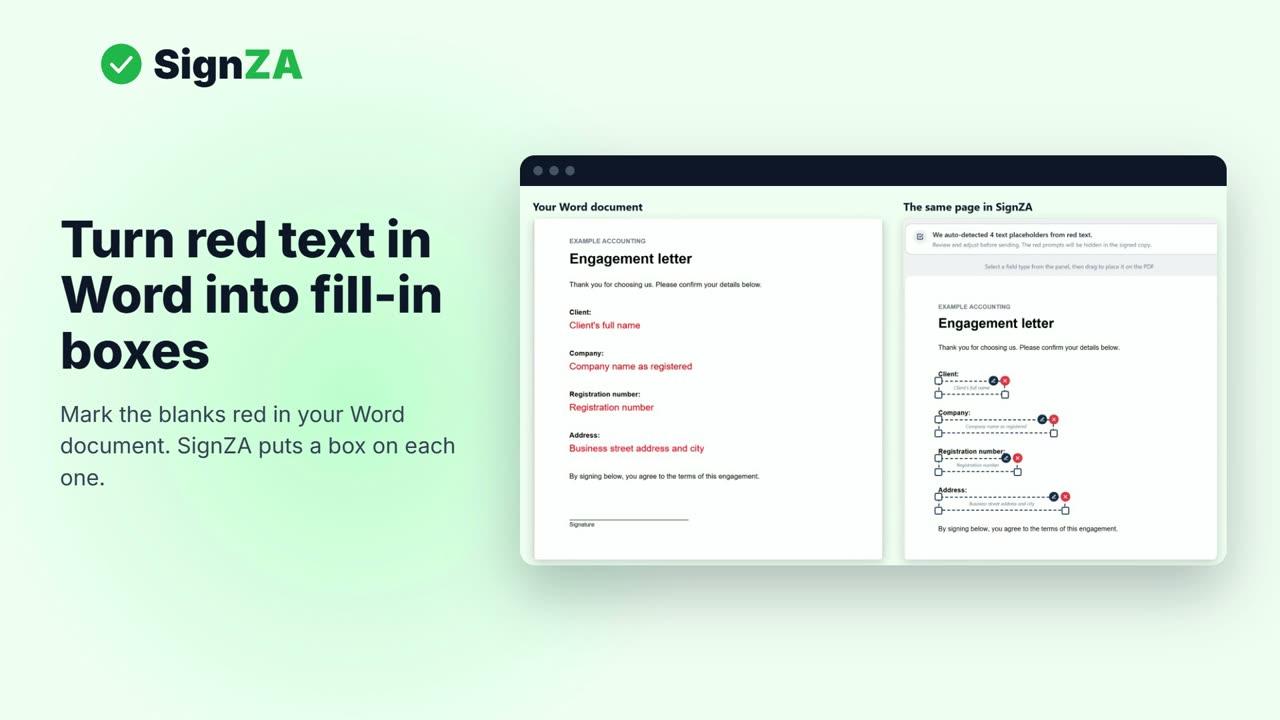 Next in the seriesHow do I turn a Word document into a PDF with fill-in boxes for signing?