How do I sign a document someone sent me, without an app or an account?
You do not need an app or an account to sign a document someone sent you. Open the email from SignZA, confirm that you know the sender, sign with your finger, type your full name, tick the box and tap Finish signing. You can download your signed copy straight away.
Steps
- Open the email from SignZA. It comes from noreply@signza.app and the subject starts with Confirm sender before signing.
- Check who sent it. Make sure you know the person or company named as the sender.
- Tap the green button that starts with "Yes, I know this sender". The document opens in your browser.
- Scroll down to read every page. The boxes with a dashed border are the places you need to sign or fill in.
- Tap the Signature box. Draw your signature with your finger, or with the mouse on a computer. If you prefer not to draw, tap Type instead.
- Tap Confirm Signature.
- Tap any other box that asks for an answer, such as a Full name text box, and type it in. Then tap Done. A box turns green once it is done.
- In the Finish signing panel, type your full name in Your full name.
- Tick the box to confirm you agree.
- Tap Finish signing.
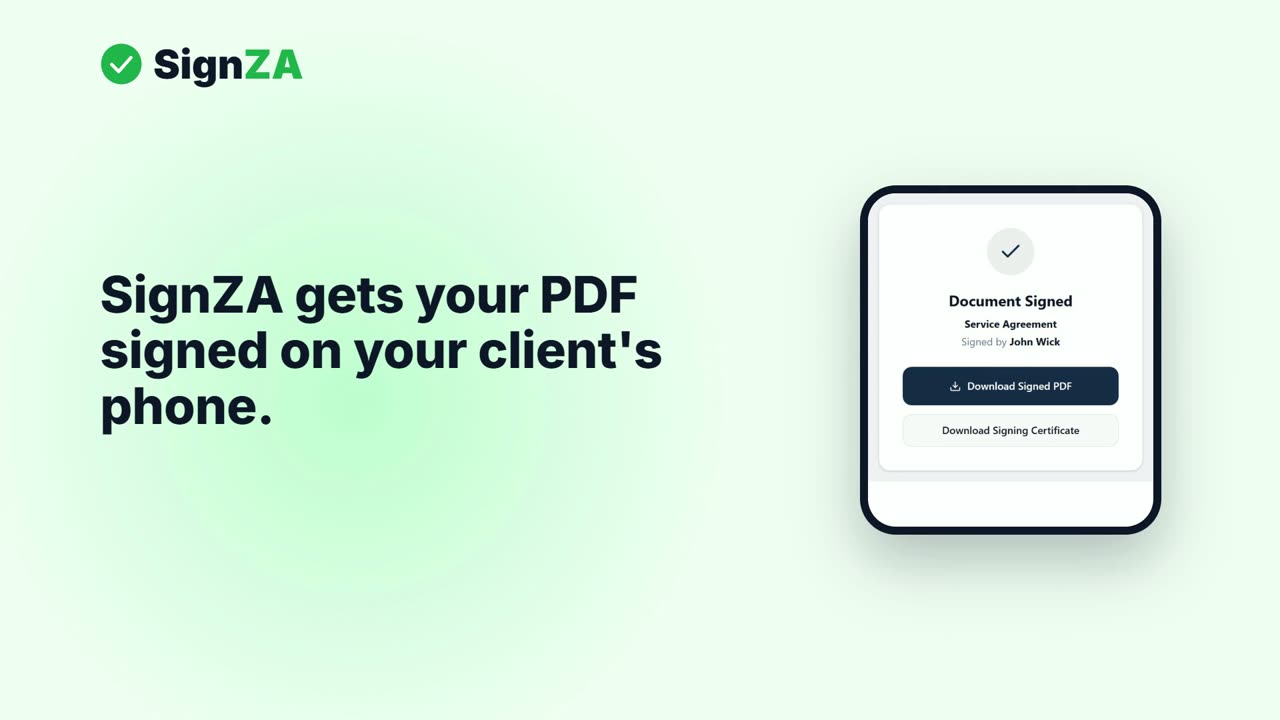
- On the Document Signed screen, tap Download Signed PDF to get your signed copy. Download Signing Certificate is below it.
Good to know
- You do not need an app or an account to sign.
- Signing costs you nothing.
- If the email does not arrive, look in your Junk or Spam folder. On Gmail, also look under Promotions.
- If you opened the document from an email, SignZA also emails you a copy after you sign.
- If the document has a name or date box, it fills in by itself when you finish.
Questions and answers
What if I cannot find the email?
Check your Junk or Spam folder, and on Gmail look under Promotions. You can also search your email for SignZA and mark it as not junk. If you still cannot find it, ask the person who sent it to send it again, or to send it to your WhatsApp.
Why does it ask me to confirm who sent it?
Before the document opens, SignZA shows you who sent it and asks you to confirm that you recognise them. If you were not expecting the request, you can choose the decline button instead.
Can I sign on a computer?
Yes. You can sign on a phone or on a computer. On a computer you can draw your signature with the mouse.
Can I type my signature instead of drawing it?
Yes. Tap Type instead of Draw, then tap Confirm Signature.
What if I have a question about the document itself?
Ask the person who sent it to you.
Next video
 Next in the seriesHow do I get a PDF signed on my client's phone?